Presets
Save your Textevo animations and apply them on any text in one click.
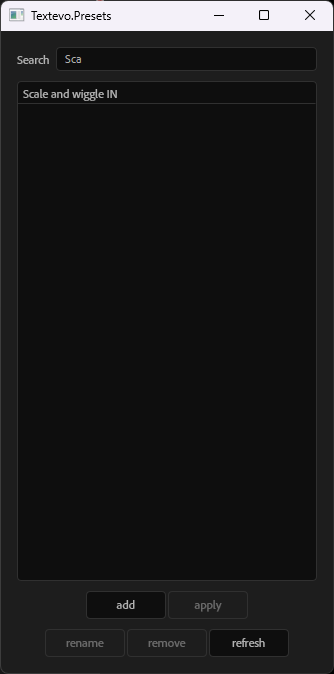
Open the presets window with the Presets button of the panel.
Dockable presets panel
Install textevo presets.jsxbin next to textevo.jsxbin (see Installation): the presets manager becomes a panel of After Effects, that you can dock next to your timeline or your Effect Controls, like any panel. Open it from Window > textevo presets.jsxbin.
- The Presets button of the Textevo panel opens it, instead of the floating window.
- Its list updates by itself when you save, rename or remove a preset from the Textevo panel or from another presets window.
- It works exactly like the presets window described below.
Save a preset
Select a text layer with Textevo, then click add in the presets window, or Shift + click the Presets button of the panel. Give your preset a name.
- If you selected some Textevo effects, only those are saved.
- If you selected the whole layer and it has other effects (drop shadow, glow, blur...), Textevo lists them and asks what to save, in the same window as the name:
- Save all: the Textevo and the other effects of the layer.
- Textevo only: only the Textevo.
- Cancel: nothing is saved.
What a preset contains
- The Textevo effects, with their values, keyframes and expressions, and their Motion.
- Their "Based on" mode, their delay from markers and the 3D per character of the layer.
- What you added to the Textevo text animators: other selectors (wiggly, range, expression...) and properties (fill color, stroke...), with their values, keyframes and expressions.
- With Save all: the other effects of the layer, in their order, enabled or not.
The keyframes are saved from the start (in point) of the layer.
Apply a preset
Select one or more presets and click apply, or double click a preset.
- The presets are applied on all the selected text layers.
- If no text layer is selected, Textevo creates one in the active composition, like the Add button. Its text shows the preset: a sentence for a preset based on words, a few lines for a preset based on lines.
- The keyframes start from the start (in point) of each layer.
- Alt + click on apply (or Alt + double click): the first keyframe lands at the current time.
- A preset with the delay from markers, applied on a layer without markers, adds the markers: one per letter, word or line of the text of the layer.
Effects that are not installed
If a preset contains effects that are not installed on your computer (third party effects), they are skipped and Textevo lists them.
Effects that point to other layers
Effect parameters that point to another layer (a displacement map, a source layer...) are not saved: they have no meaning in another composition.
Find a preset
The list shows, for each preset, what its Textevo are based on (letters, words, lines...) and their motion (elastic, bounce, oscillation, and Markers for the delay from markers). The presets are sorted by name.
- Search: type a part of a name to filter the list (not case sensitive).
- Based on and Motion: show only the presets based on words, or with an elastic... The filters work together with the search.
Rename, remove
- rename: renames the selected preset (one at a time).
- remove: deletes the selected presets, after a confirmation.
- refresh: reloads the list, for example after copying preset files in the folder.
Where are the presets?
In the presets folder of the Textevo folder chosen at the first launch (see the settings). A preset is a .json file: copy it to share it, or to use it on another computer.
Presets saved with an older version
The presets saved before Textevo 2026 stored their keyframes from the start of the composition they were saved in: once applied, they could land far after the text layer, sometimes outside of the composition.
When the presets window opens, Textevo detects them and offers to update them, so that they start at the start of the layer. A copy of the original files is kept in the backup_before_2026 folder of your presets.
If you don't update them, you can still apply them with Alt + click: the first keyframe lands at the current time.